In case if you would like to configure MySQL separately, then just use the following link for the installation.
MySQL Installer 8.0.29 (download the file which is smaller in size and that will install all products including MySQL Workbench)
To install the latest version visit MySQL Community Downloads page. And select MySQL Installer for Windows
Code Editor
There are several options but Visual Studio Code is pretty good. It can be downloaded from VS Code Website
Configure Visual Studio Code for PHP by visiting this link
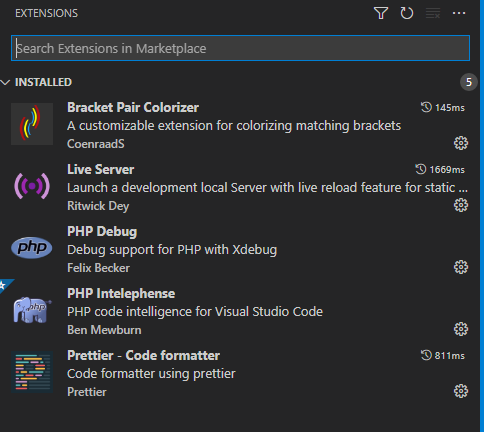
Installing following extensions in VS Code should be helpful.
First PHP Program
Assuming that AMPPS software is installed and running on your computer.
Type http://localhost/ampps in your browser and ensure this link is working and displaying the web page on your computer as you has seen in the tour page of AMPPS website during the installation.
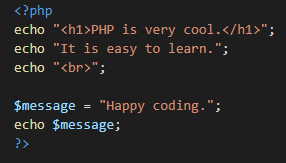
Next open Visual Studio Code and create a new file LearnPHP.php in C:\ampps\www folder with the following code.
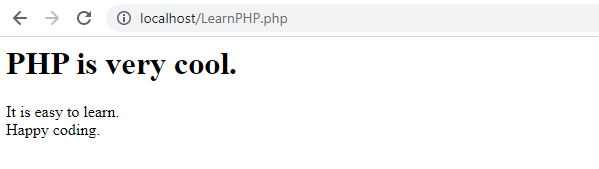
Go to your browser and type in localhost/LearnPHP.php and should see the following page.
We can also run PHP program from the console (Command Prompt)
for that we have to add C:\ampps\php-7.3 (assuming php-7.3 installed) path to
Windows Environment Variables.
Go to System Variables and Edit Path variable and Add that path there.
And run programs by issuging PHP command from the console for example: PHP yourprogram.php
It is good for testing the file that has only PHP code.
So you can see the output of PHP code without going to the browser.